
In this article we describe how you can switch to a child theme when you have already created contents, layouts and design that you do not want to loose:
Should the theme not look the same as before, you can also try to import the design file you saved at the beginning.
Keep the current theme active
Make a backup of your entire site, the design and files via Greyd.Hub
If available, copy the additional CSS in the global styles into an editor
If the header contains a popover, copy the code from the header in the code view into an editor
Save the font files via FTP if you have not already saved them somewhere
Now switch the theme and activate it
Now go to Appearance -> Theme Assets in your WP backend and then to the “Global Styles” tab. Click on “Assign to current theme” for the theme that was previously active.

Now do the same with the templates in the “Template” tab. The missing templates should be grayed out.
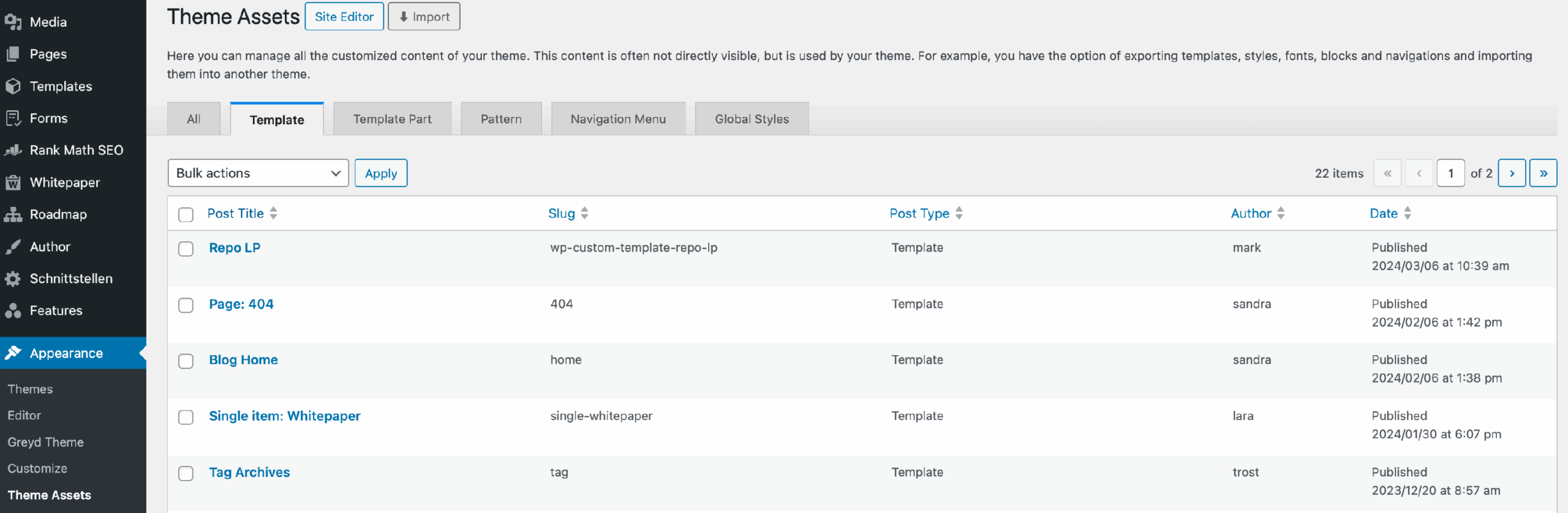
Now go back to the site editor and paste the previously saved CSS back into the global styles. Overwrite everything that was there before.
Check whether the correct font is displayed in the frontend. If not, delete the font in the site editor and upload it again. The settings for the fonts should still be there.
Check whether the popovers are displayed correctly in the header in the site editor. If not, remove all blocks and reinsert the content of the previously saved code.