When you have a template that is assigned to a specific page, you may ran into an issue when changing the URL of that page. Your page and site template may then no longer be connected with each other.
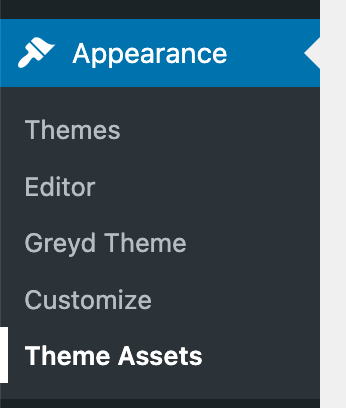
In Greyd.Suite there is an easy way to fix that: Open the Theme Asset tab in the Appearance menu, where you will see all your templates.
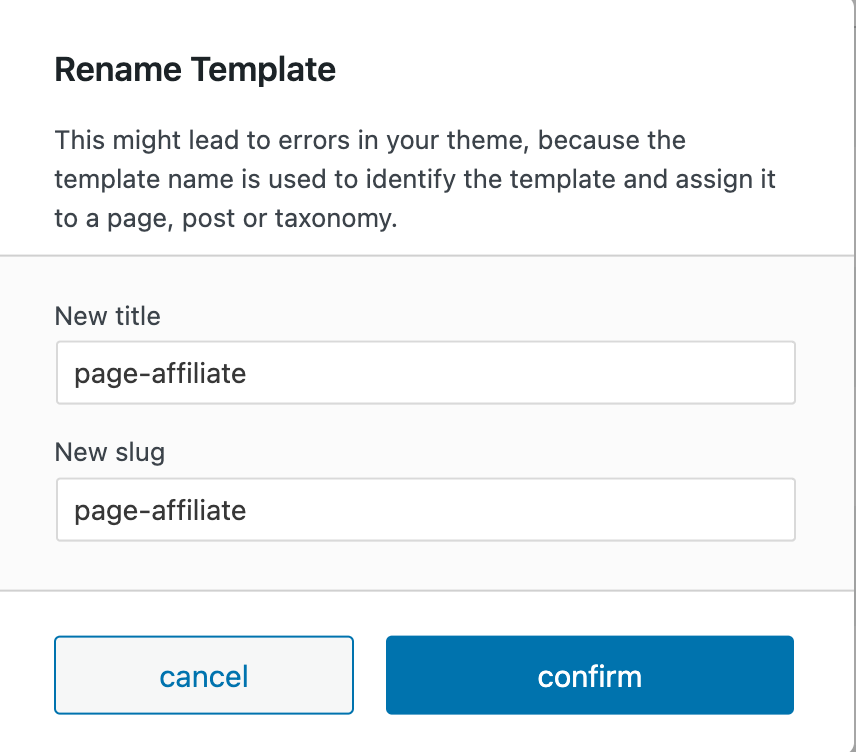
Find your template in the list, or click on the “Templates” tab to filter the list. Find the template you’re looking for and you can now click on “Rename” and change the title and slug according to the URL of your page: