
The Advanced section provides additional configuration options that allow more control over a block’s behavior, appearance, and visibility. The available settings vary depending on the block and are only shown when relevant.
Core Features
By default, WordPress includes the following options in the Advanced section across most blocks:
- HTML Anchor: Lets you define an anchor link for in-page navigation. Greyd adds it to additional blocks such as Embed, HTML, and Query to allow anchor navigation.
- Additional CSS class(es): Allows assigning custom class names for styling. It is extended to additional core blocks like HTML and Separator.
- Link rel: Available only for Core Button block, where you can add values like
nofollow.
Greyd Features
The Greyd Plugin extends this section with several additional features. These settings are context-dependent and not available for every block. For blocks provided by the Greyd Plugin, all applicable advanced options are listed on the respective documentation pages.
Styles Class
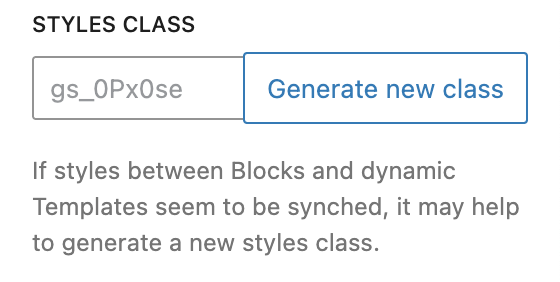
A separate CSS class is automatically generated if a custom Greyd setting is adjusted on a block. These class names start with gs_, followed by an alphanumeric string to keep them individual. Usually a change of this class is not needed but there might be cases where it makes sense to regenerate that class name, which can be done by clicking on the “Generate new class” button. See the greydStyles section in the Core Block Extensions article for more details.
CSS Animation
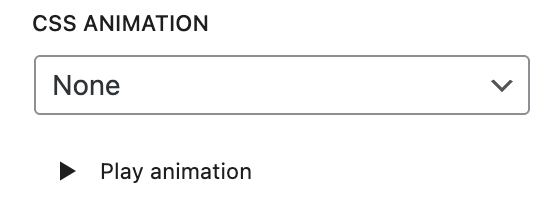
Adds entrance animations that trigger when the block comes into view. It’s also possible to play the animation once in the editor by clicking on the “Play animation” button below the select. More than 30 animation types are available:
- From top to bottom
- From bottom to top
- From left to right
- From right to left
- Zoom in
- Bounce animations:
- Bounce in
- Bounce in, down
- Bounce in, left
- Bounce in, right
- Bounce in, up
- Fade animations:
- Fade in
- Fade in, down
- Fade in, down big
- Fade in, left
- Fade in, left big
- Fade in, right
- Fade in, right big
- Fade in, up
- Fade in, up big
- Spin animations
- Rotate in
- Rotate in, down left
- Rotate in, down right
- Rotate in, up left
- Rotate in, up right
- Zoom animations:
- Zoom in
- Zoom in, down
- Zoom in, left
- Zoom in, right
- Zoom in, up
- Slide animations:
- Slide in, down
- Slide in, left
- Slide in, right
- Slide in, up
- Special animations:
- Roll in
- Flip in, horizontally
- Flip in, vertically
- Light speed in
Hide (per breakpoint)
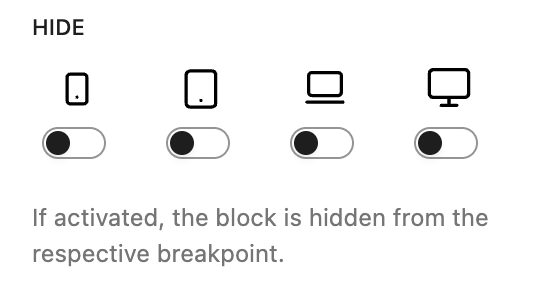
This hide setting with four toggles for different device icons allows you to hide the block on specific breakpoints (mobile, tablet, laptop, desktop). It will still be rendered but is hidden with CSS.
Hide (entirely)

If there’s a simple hide toggle available, this means you can hide this block entirely from the backend and the frontend. It will not be rendered, so there will be no output on the frontend.
Inline Styling

You can add raw CSS properties directly to the style attribute. Enter CSS declarations like text-align: center; without selectors or curly braces.
Greyd Features on Core Blocks
Additionally, the Greyd Plugin enhances several WordPress Core blocks with advanced features:
CSS Animations
- Button
- Columns
- Column
- Embed
- Gallery
- Group
- Heading
- Image
- Paragraph
- Query
- Separator
- Video
Hide (not rendering)
- Columns
- Group
Inline Styling
- Button
- Columns
- Column
- Embed
- Gallery
- Group
- Heading
- HTML
- Image
- Navigation
- Query
- Paragraph
- Separator
- Spacer
- Video
Anchor Support
The Greyd Plugin also adds anchor support to the following Core blocks:
- Archives
- Calendar
- Categories
- Embed
- HTML
- Latest Comments
- Latest Posts
- Page List
- Query
- RSS
- Search
- Tag Cloud