
When working with a local post — that is, one not yet integrated into Global Content — you have full editing capabilities. The post behaves like any standard WordPress post and can be converted into a global entity at any time via the editor UI.
This article explains how to access and use the Global Content features from within the post editing screen.
Accessing the global content panel
In the block editor, a Global Content section appears in the right sidebar. Depending on your plugin configuration and screen layout, you may need to scroll down to find it.

This area will give you access to convert the post to Global Content and display any matching global posts already in the system.
Convert to global content button
If the post is not globalized, the “Convert to Global Content” button appears prominently in the panel. Clicking this button opens a modal dialog. It shows the same options as in the overview table, including:
- Include Nested Content: ensures referenced media and templates are included
- Include Individual Posts: if applicable for the current post type
- Include Translations: if WPML/Polylang is installed
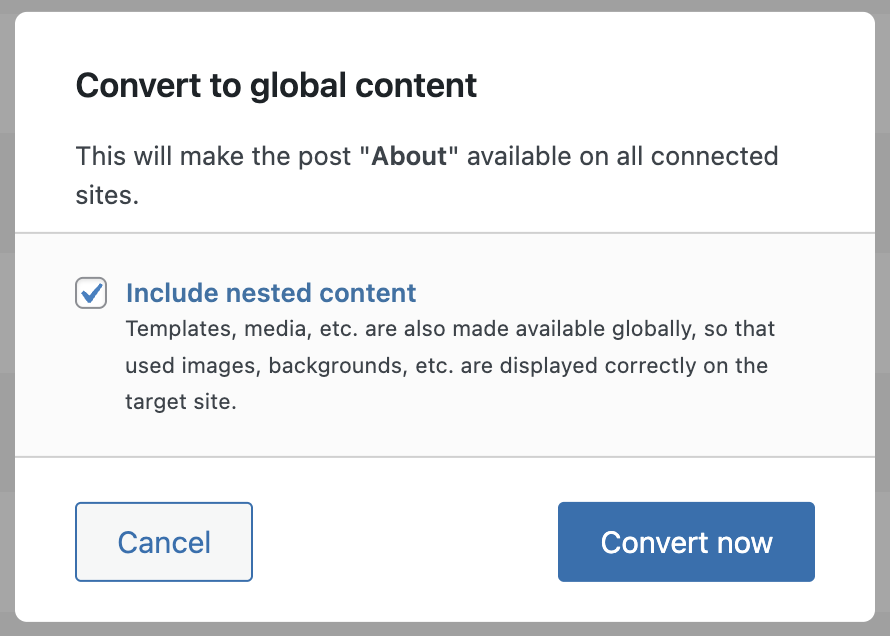
Save warning before converting
If the post has unsaved changes, a warning appears:
“Saving is required before converting this post to Global Content. Converting will reload the page.”

To avoid data loss, make sure to save your post before clicking Convert Now.
Duplicate content warning
If another global post with the same title exists elsewhere in your network, you’ll see a warning message:
“Similar content is already available globally. Are you sure you want to make this content global additionally?”
This helps avoid confusion in synchronization or when importing later.

Similar global posts detected
Below the conversion options, the system will asynchronously look for similar global posts across the network. This takes a few seconds depending on network size.
If one or more matches are found, a list is displayed directly in the panel:
- Post title, linked to edit the post
- Origin site name
- “Use” action button

Clicking Use opens a modal to overwrite the current post with content from the global one.
Overwrite dialog
In the overwrite dialog, you can confirm to overwrite the current post with the similar global post that has been found on the network.

If you confirm by clicking on Overwrite now, these actions will be done:
- The current post will be replaced with the global post’s content, metadata, and taxonomy.
- The post will become a Linked Post (synced).
- The editor will reload.