
The Turnstile block in Greyd Forms integrates a Cloudflare Turnstile check into the frontend of your form to help prevent spam submissions. Before using the block, the Cloudflare Turnstile site key and secret key must be added under Forms → Settings. If no site key is defined, a warning message will appear in the editor indicating that the Turnstile cannot be executed. Once a valid site key is provided, a placeholder labeled “Turnstile banner” will appear in the editor to indicate the position of the Turnstile on the frontend.

Settings
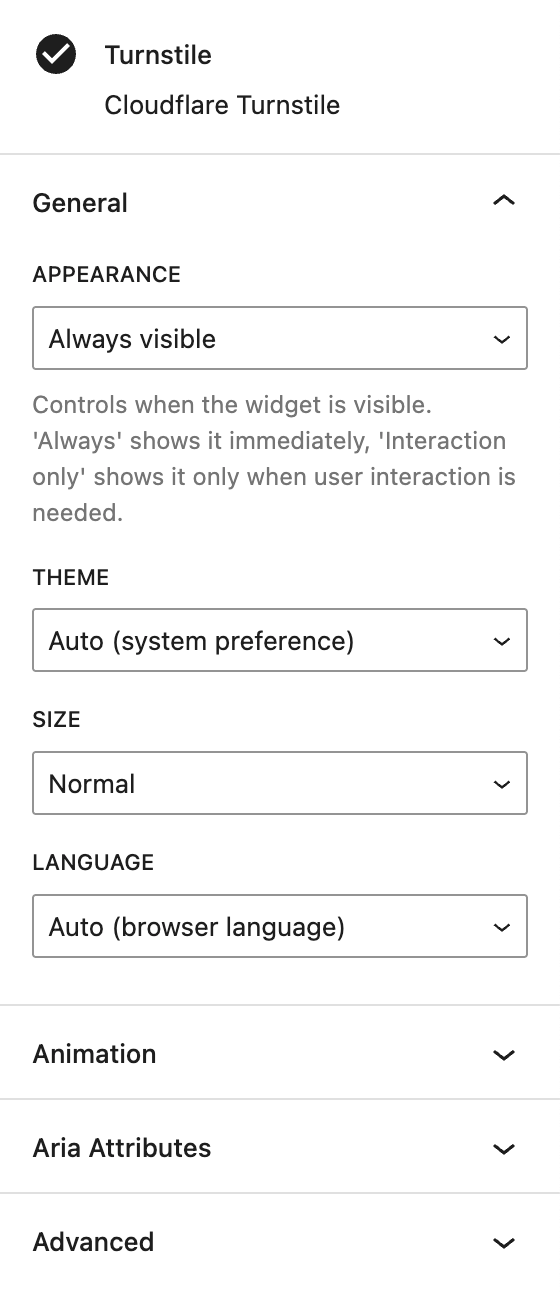
Under the General section, several options are available to customize the Turnstile banner.
At Appearance, you can define how the banner should be shown. Options are Always visible (default), Execute (on challenge) and Interaction only.
With Theme you can define whether a light or dark varation should be used, the default here is Auto (system preference), which uses the system preference of the users computer.
The Size option offers different sizes for the banner with Normal (default), Compact and Flexible.
The Language option can be used to always use a specific language. By default, the Auto option is selected, which will then use the browser language.
The block also supports Animations. In the Advanced section, you can find settings for additional CSS classes and toggle