
The SMTP Extension feature enables you to configure a custom SMTP server for sending all WordPress emails through a verified email address. This helps avoid common deliverability issues and reduces the chance of your messages ending up in spam folders.
Once the feature is activated on the Features page, a new section titled SMTP settings becomes available within the Greyd Settings. This section lets you define all necessary server parameters for email routing via SMTP.
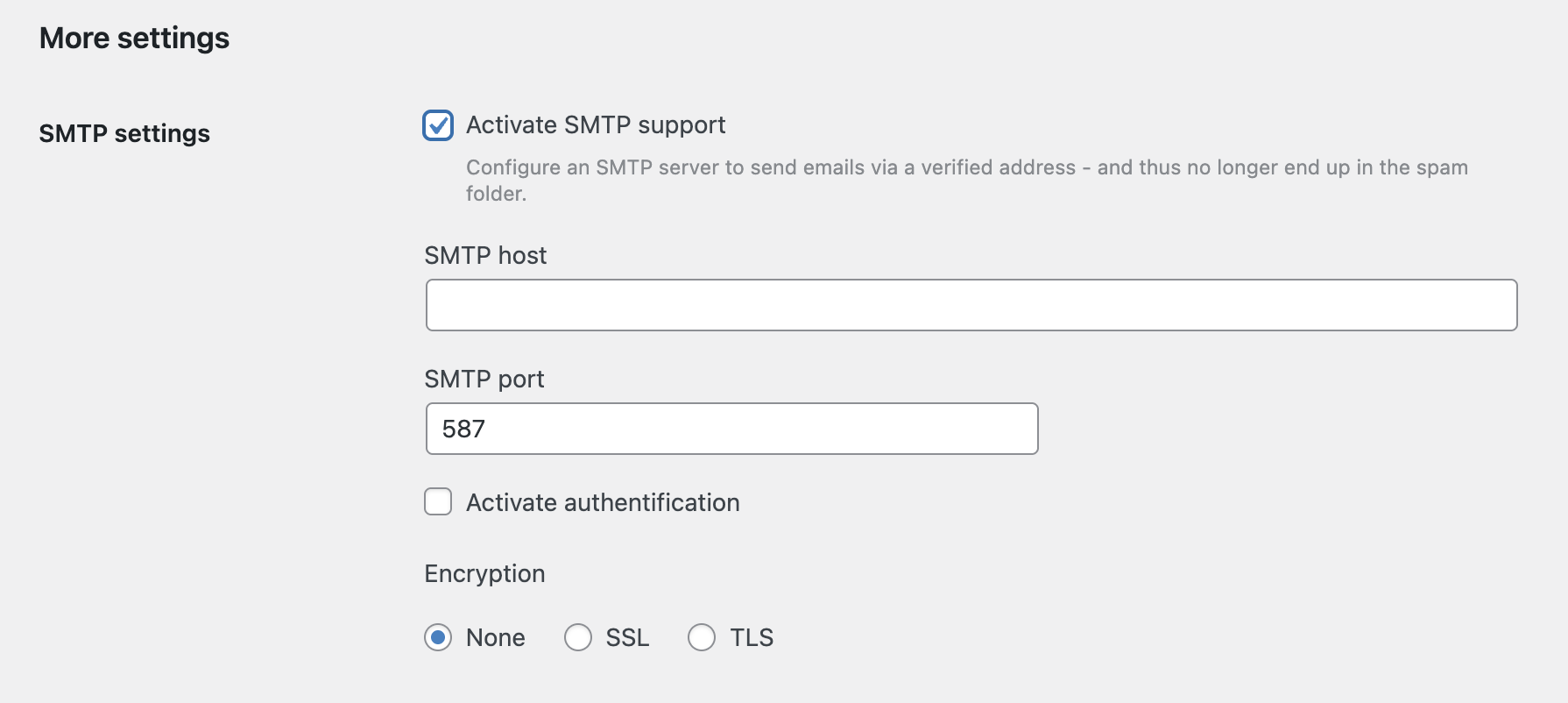
To use the feature, you must first enable the Activate SMTP support checkbox. After activation, several input fields and options will be displayed:
The SMTP host and SMTP port fields are mandatory and define the server and port used for sending emails. If your SMTP server requires authentication, enable the Activate authentication checkbox. This will reveal two additional fields: Username and Password, where you can enter your SMTP credentials.
Lastly, you can choose an encryption method under the Encryption setting. Available options include None, SSL, and TLS, depending on your server’s requirements.
Once these settings are configured correctly, every email sent by WordPress – including form submissions, user notifications, and system messages – will be routed through the defined SMTP server.