
The Form block lets you place a form you’ve already created under Forms onto any page or post. You don’t build the form here — you simply choose which one to display, and the block always shows the current version of that form. If you later edit the form under Forms, every page using it updates automatically.
Inserting a form
When you add the Form block, it initially shows a selection screen listing all available forms. From here, you can pick a form from the dropdown list, or click Create new form to start a new form in a separate tab. As soon as a form is selected, the block displays a live preview of it, showing exactly how it will appear to visitors.
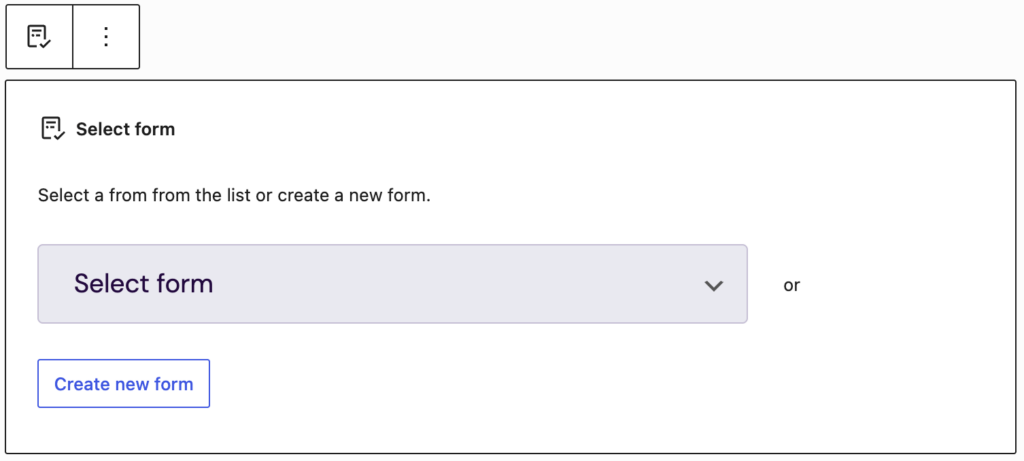
Choosing and changing the form
The dropdown used to select a form is available in the block settings under General, so the form can be swapped at any time. On multilingual sites, forms are sorted by language: forms in the current language appear at the top of the list, while all others are grouped underneath their respective language.
For the “Convert to Dynamic form” button, please see the section below.
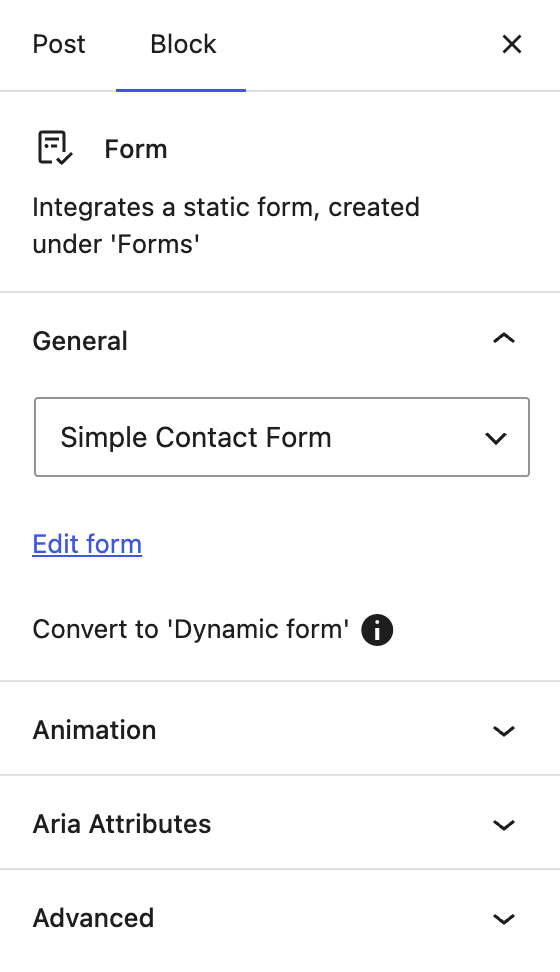
Editing the selected form
Edit form, available both in the toolbar and in the block settings, opens the selected form in a new tab so it can be adjusted without leaving the page currently being edited.
Good to know
A form cannot be placed inside another form. The block only stores which form is shown — its content, fields, and settings are managed centrally under Forms.
Switching to the Dynamic form block
The Form block places a form as it is. To use a form whose fields are filled with dynamic content — for example a subject line, a preset value, or a selection list that changes depending on the page — the Dynamic form block should be used instead.
Dynamic form is not a separate block of its own; it is a variation of the Template block. This is why it behaves like a dynamic template: a form is selected, and its fields can then be filled with dynamic values, in the same way this is done with a template.
The block settings of the Form block include a “Convert to ‘Dynamic form’” button, which can be found in the right settings sidebar. Using it replaces the Form block with a Template block in the Dynamic form variation, keeping the selected form and its settings. Afterwards, all fields with Dynamic Overwrites enabled can be filled with their final values.
A Dynamic form can also be inserted directly from the block inserter, without going through the Form block first. Existing forms continue to work unchanged, so converting to Dynamic form is optional and can be done at any time dynamic values are needed.