
Buttons often share the same short text, for example “Read more” or “Learn more”. Sighted visitors understand from the layout which post or product a button belongs to. Screen reader users often jump from link to link or open a list of all links on the page. In that list, ten buttons called “Read more” are impossible to tell apart.
Dynamic Aria Labels solve this for buttons inside Dynamic Templates. You can give every button its own accessible name, for example “Read more about Hello World”, while the visible text stays “Read more”. The label is set each time the template is used, and it can contain Dynamic Tags such as the post title. So a single template in a Query Loop gives every post its own label.
Dynamic Aria Labels are available for these blocks:
- Button (Core Button with the Greyd extensions)
- Button (Greyd)
The feature is part of Dynamic Templates. Enable Dynamic Templates on the Features page to use it.
Make the aria label dynamic in a template
Open the template under Templates and select the button. In the settings sidebar, the Dynamic Elements panel lists the parts of the button that can be made dynamic: Button text, URL, Trigger and Aria label.
Turn on the Aria label toggle. A Dynamic field name input appears with a generated name, for example ariaLabel_x61q. You can replace the name if needed. If you give several fields the same name, they are filled with the same content later.
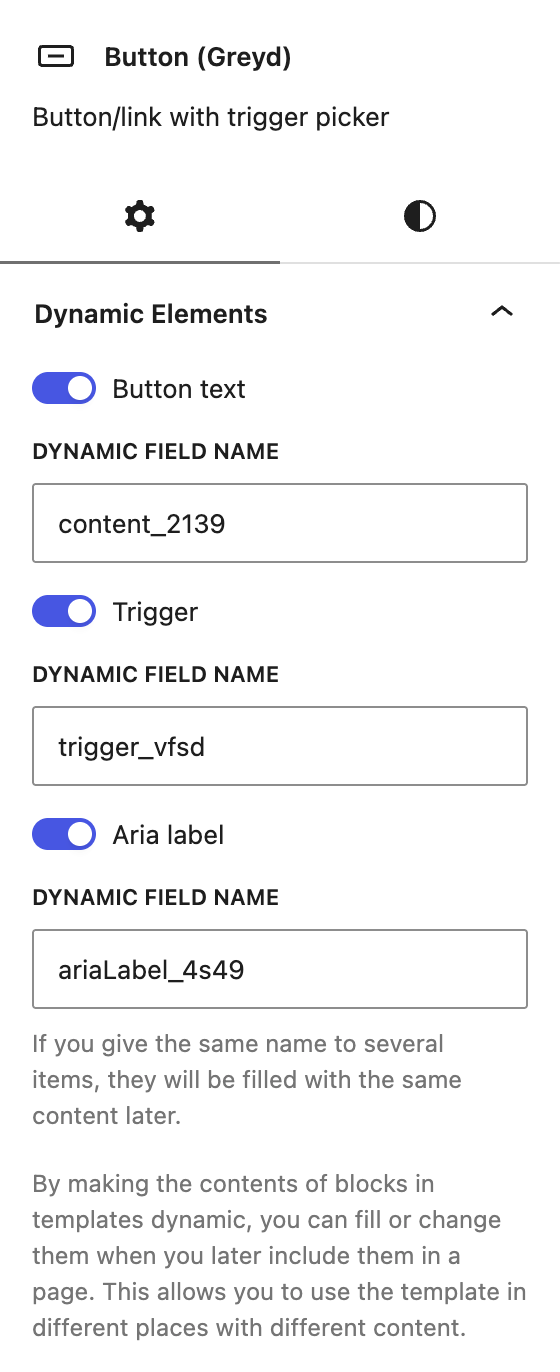
The value is entered later on the Template block. If nobody fills it in, the button keeps its visible text as its accessible name.
The Aria label field only exists for buttons in Dynamic Templates. To set a fixed aria label on a button anywhere else, use Aria Attributes.
Fill in the aria label when using the template
Insert the Template block on a page, in a post or in a Site Editor template, and select your template. The Dynamic Elements list in the sidebar now shows a field with the default name or the one you chose in the template.
Type the label into the field. To add a Dynamic Tag, type # or use the Dynamic Tag button in the toolbar of the field, then choose a tag, for example Post title. The tag is shown with a light purple background, just like in a paragraph. Click it to change the tag or its formatting options.
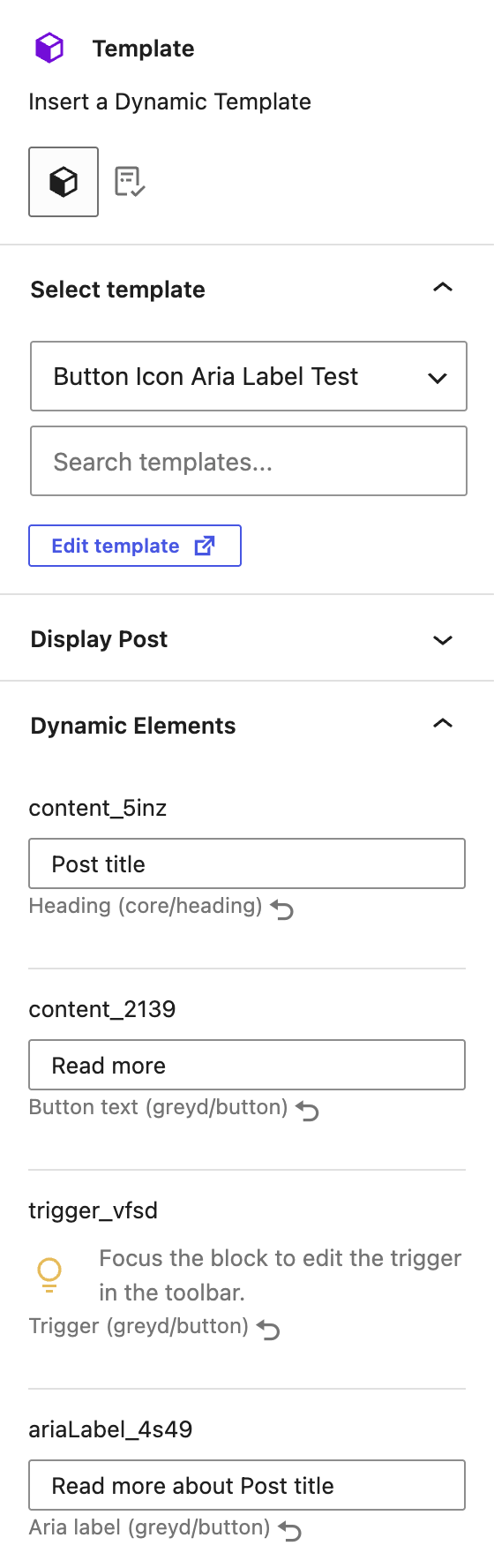
Only Dynamic Tags can be used in this field. Formats like bold or links are not available, because an aria label is plain text.
Dynamic Tags in the aria label use the same context as the rest of the template. They show the data of the current post, the post selected under Display Post, the current post of a Query Loop, or the current post or archive of a Site Editor template. Read more in Context of Dynamic Templates.
Example: “Read more” buttons in a Query Loop
A common use case is a post teaser that is shown for every post of a Query Loop:
- Create a template “Post teaser” with a heading, an excerpt and a button with the text “Read more”.
- Select the button, turn on Aria label under Dynamic Elements and name the field “Read more label”.
- Add a Query Loop to a page and insert the Template block with the “Post teaser” template into the Post Template block.
- In the “Read more label” field, enter
Read more aboutand insert the Post title Dynamic Tag.
On the frontend, every button keeps the visible text “Read more”, but gets its own accessible name:
<a class="wp-block-button__link" href="https://example.com/hello-world/" aria-label="Read more about Hello World">Read more</a>A screen reader now announces “Read more about Hello World, link” instead of only “Read more, link”.
How the label is output
- The label is added as an
aria-labelattribute to the link element of the button. - HTML is removed, so only text is output. Special characters from Dynamic Tags, for example
&in a post title, are shown correctly. - If the field is empty, no
aria-labelis added and the visible button text is used as the accessible name. - If the button also has an aria-label set via Aria Attributes, the Dynamic Aria Label replaces it as soon as it is filled. An aria-label from Aria Attributes on the button in the template can therefore serve as a fallback for template instances where the field is left empty.
- If aria-labelledby is set via Aria Attributes, it takes priority and the
aria-labelis not output, as described in the Aria Attributes article.